



A little gold star in the corner of a blog has the same charm as a sticker on a notebook. It takes up almost no space, but it makes the page feel like someone lives there. Here’s a small design you can make for a welcome post, even if your whole toolkit is a rectangle, a few squares, and a text box.
Make the still sign first
Open a drawing or layout app and make a 1200 × 720 canvas. Put a wide navy rectangle in the middle. Leave about a tenth of the canvas clear on either side so the border has room to breathe. Add a thin mint outline and a gold star off to one side. To get the pixel look, draw the star from square steps. A bold cream word like WELCOME is enough to balance it.
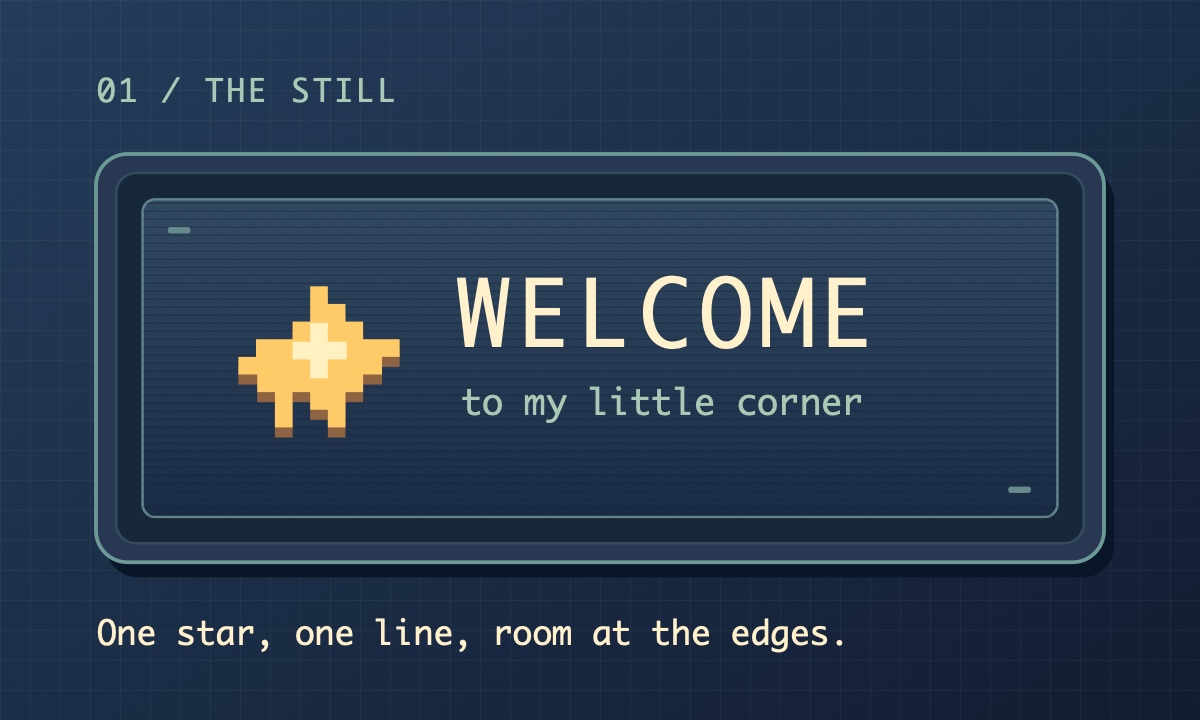 Leave a margin around the star and lettering so both have room when the sign gets smaller.
Shrink the design to about 320 pixels wide before you export it. If you need to squint, enlarge the main word or cut the smaller line. Save a static PNG or JPG. Now there’s a sign you can use as it is.
Give the star one soft glow
For an optional moving version, hide the lettering and duplicate the same canvas. In the first copy, turn the gold down to amber. In the second, brighten the gold without changing its shape, size, or position. Export those copies as two separate files with identical dimensions.
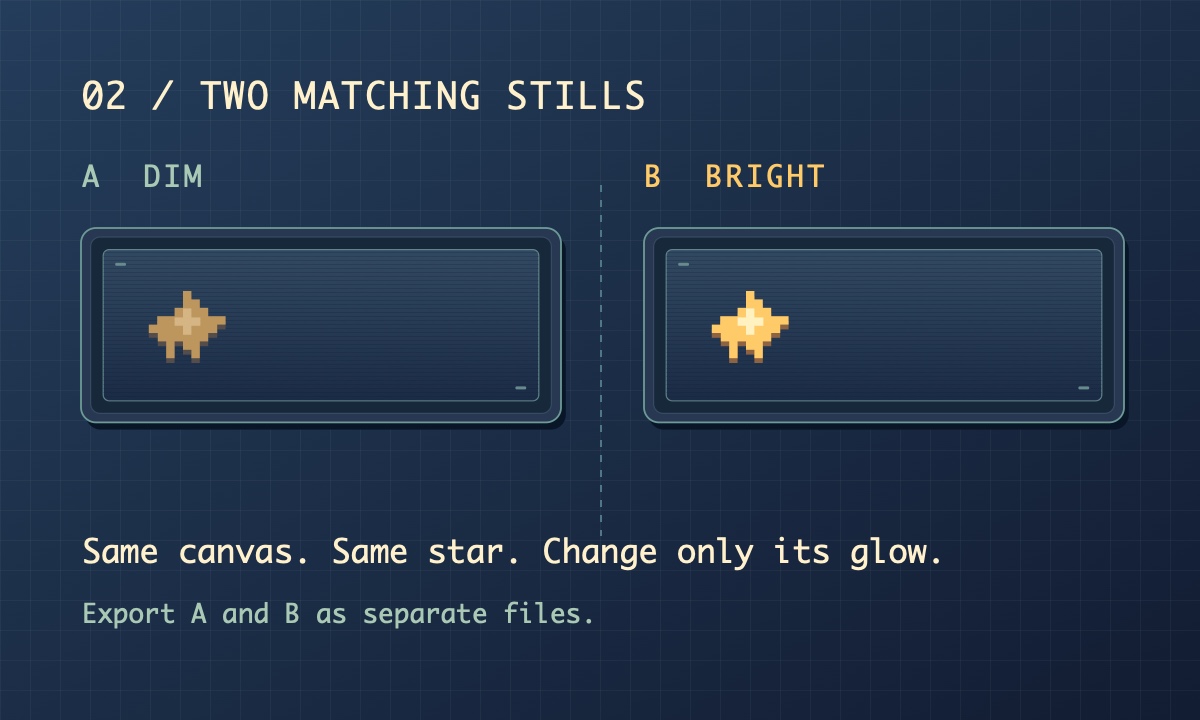 Export the dim and bright states separately. The comparison shows the two intended stills.
The OpenMaker page lists a free, no-signup option that uses a first and last frame to make a five-second 480p clip. Put the dim still first and the bright one last. Try this prompt:
The small star brightens gently once, then holds. Keep the star shape, navy background, mint border, and framing fixed. No camera movement, flashing, or added lettering.
The examples here are drawn stills. If your preview makes the border bend or the star pulse, the static sign already has everything the post needs.
Write the welcome underneath
Place the still near the start of a welcome post. Give it a short description if your editor has an alt text field, such as “Gold pixel star beside the word Welcome on a navy sign.” Put the actual greeting in the post as text, too. Here’s a line you can adapt:
Hey, welcome in. This is where I leave little projects, internet finds, and things I want to remember. Say hi if you feel like it.
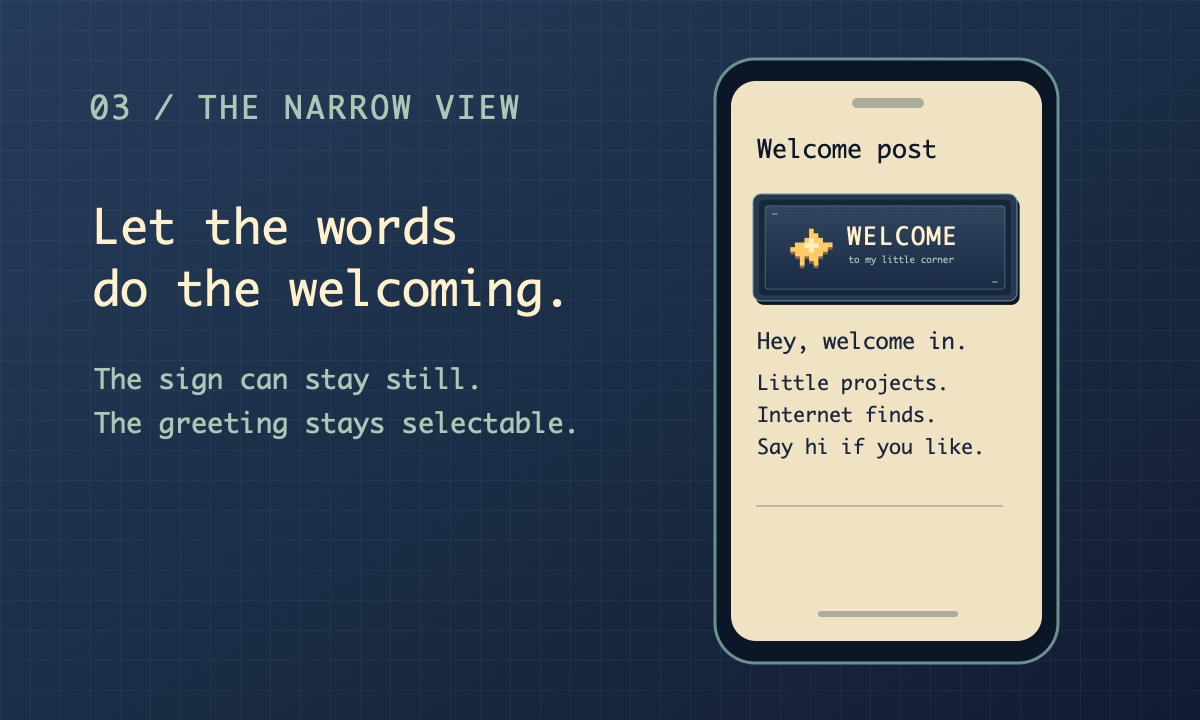 A narrow preview helps check that the whole sign fits and that the greeting reads on its own.
Check the preview on a phone or in a narrow window. Look for a complete star and border, then read the greeting with the image out of view. If the editor drops the picture, the greeting still works by itself. What would you put on your sign?
Comments
Displaying 0 of 0 comments ( View all | Add Comment )