

I don't know how to upload skins and the base skin wasn't made by me, so i'll just share how i modified the skin
you can pretty much use this as a basic tutorial on how to modify this rainmeter skin with anything you want to configure
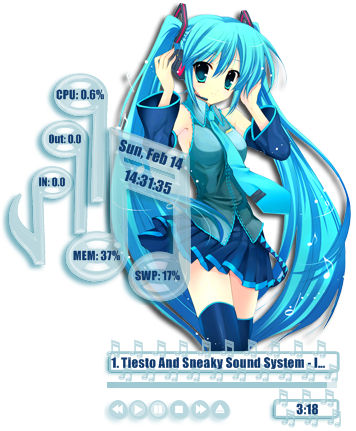
original: https://visualskins.com/skin/hatsune-miku-2 by Kaza-SOU
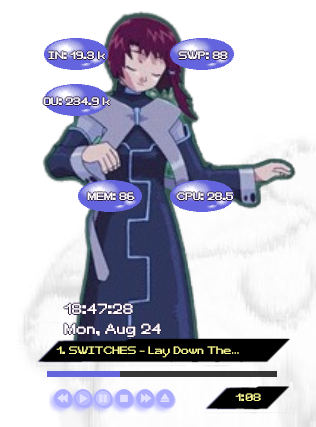
displays current time, current date, current winamp song details, RAM, CPU, SWP, INPUT and OUTPUT
> first, if you don't know how to open up the code to edit the skin, read "editing skins":
https://docs.rainmeter.net/manual/getting-started/customizing/
it's basic, just use notes app to modify the simple code
!! make sure to save the code (file>save or ctrl+s) and then refreshing the skin(right-click on it) to view changes
> changing the character sprite to replace miku
load up the skin. to check where the skin file is, right click on it >HatsuneMiku2. the images used in the skin will be found here. all you need to do is move the transparent png file of the character you want to use into the folder, and then in the skin editor(notes app), look for:
[Chara]
Meter=IMAGE
X=...
Y=...
ImageName=miku.png
-just replace "miku.png" with the file name. i saved the image as "lainspin", so it would be "ImageName=lainspin.png" for example
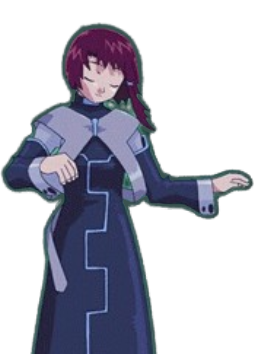
this is the lain sprite i used. make sure the size of the image are the same as the default miku.png (257 x 354), or maybe some weird resizing issue might occur
> changing meterbox thing
same thing,
[MeterBox]
Meter=IMAGE
X=...
Y=...
ImageName=meterbox1.png
> changing 2nd meterbox
same thing,
[MeterBox2]
Meter=IMAGE
X=...
Y=...
ImageName=meterBox2.png

> getting and applying a custom font
download the original font from https://fontstruct.com/fontstructions/download/2423977
psx-lain TYPE by elinary2005
unzip zipped file to get the .otf file, then add it to your desktop by going to settings>personalization>fonts, add the file into drag and drop to install. Search the font name in Available fonts to double check it's usable.
To change any text in the code, check for "FontFace=". In the default code, it will be "FontFace=Impact". just change it to "FontFace=psx-lain TYPE", very simple. you can do this with any font you want as long as you have the font added.
to add a border to the text to fit the game's style:
StringEffect=Border
FontEffectColor=49,33,66,255
-at the end of a text section
[wip]
Comments
Displaying 0 of 0 comments ( View all | Add Comment )